A guide for new readers
How Marginborn works
Marginborn keeps the passages you read and the thoughts they start, files them under ideas, and brings them back on Home. This guide walks through how it works, and the things it does that you might not guess.
The film shows the ideas behind Marginborn in broad strokes; where it and the guide differ, the guide is right. The guide below shows the iPhone app, and What is private, plainly says what is encrypted and what is sent away.
The app in one picture
Five places sit on the bottom bar. Everything else opens from one of them.
Scroll sideways to see all five places.
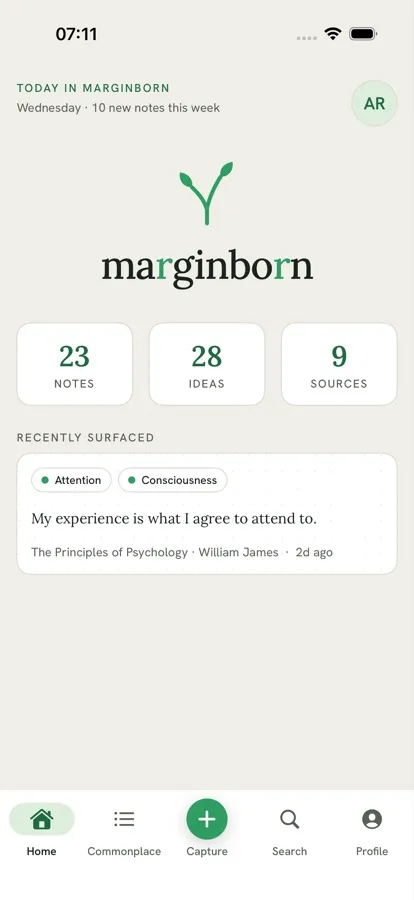 Home
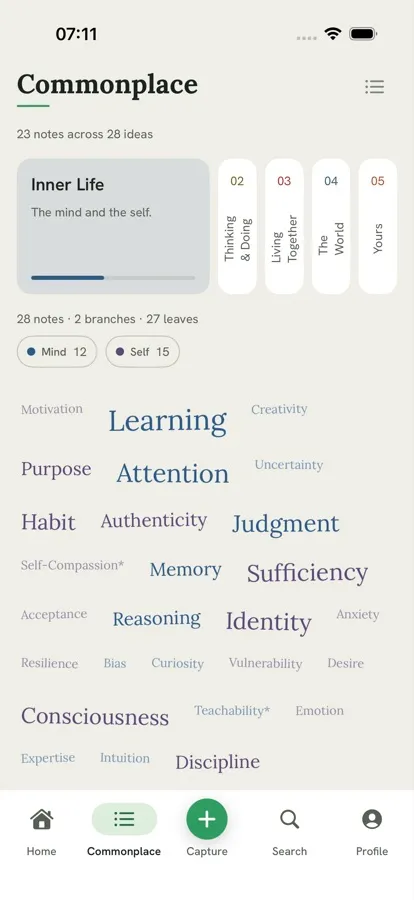 Cloud and list
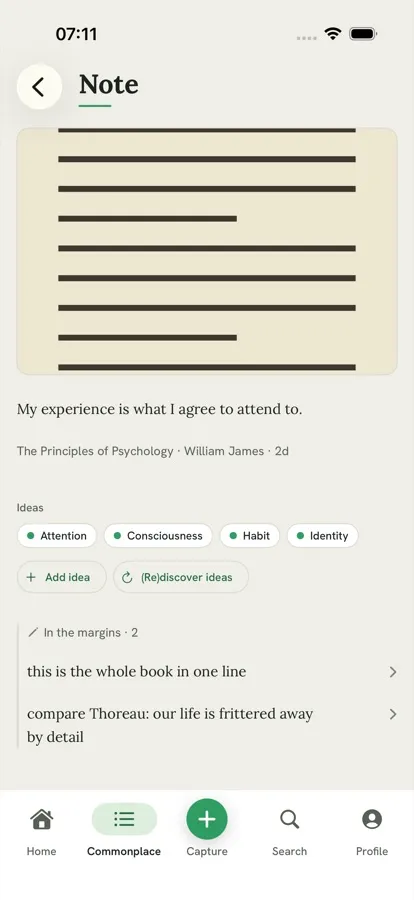 A note's page
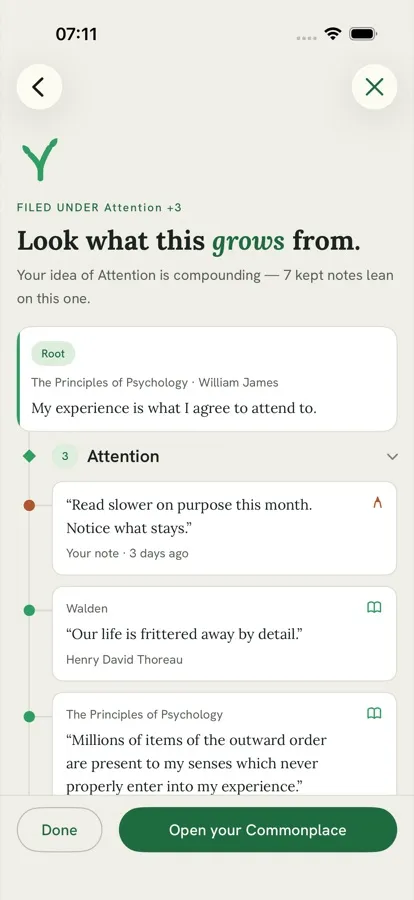 The Stem
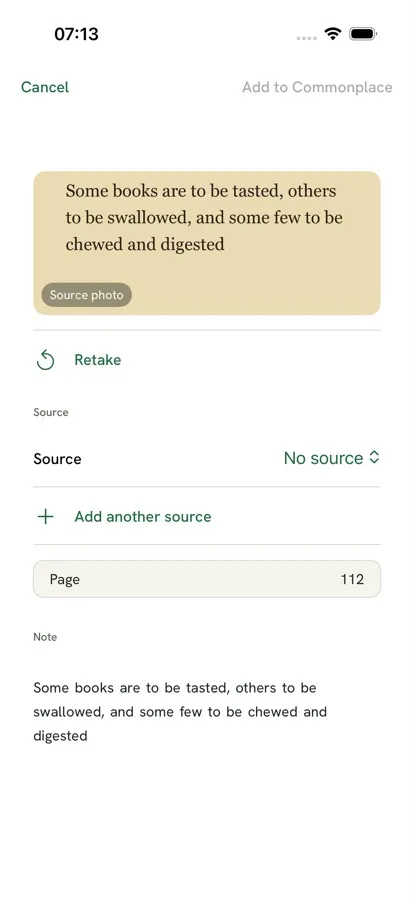 Capture form
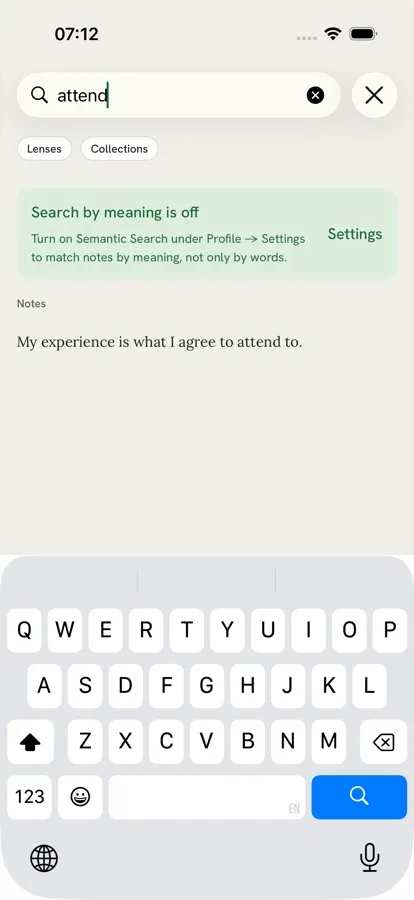 Search
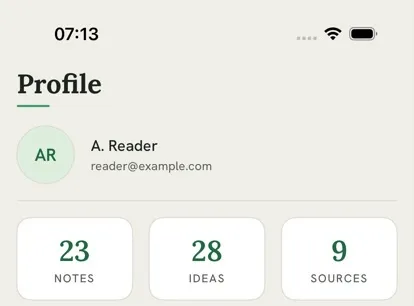 Profile
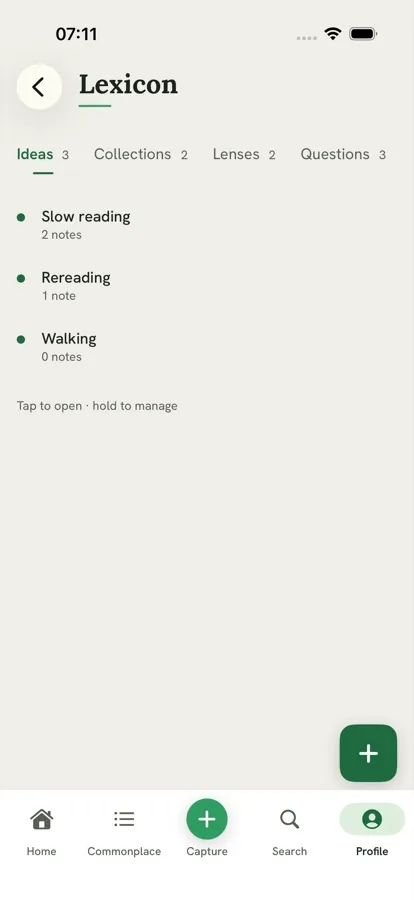 Lexicon
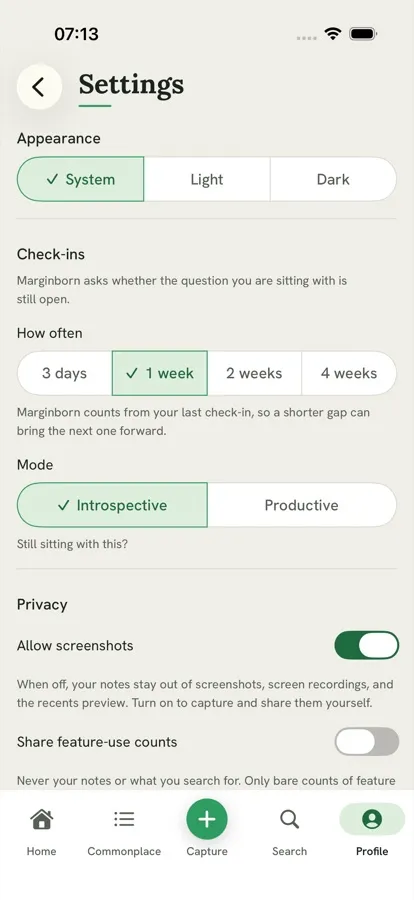 Settings
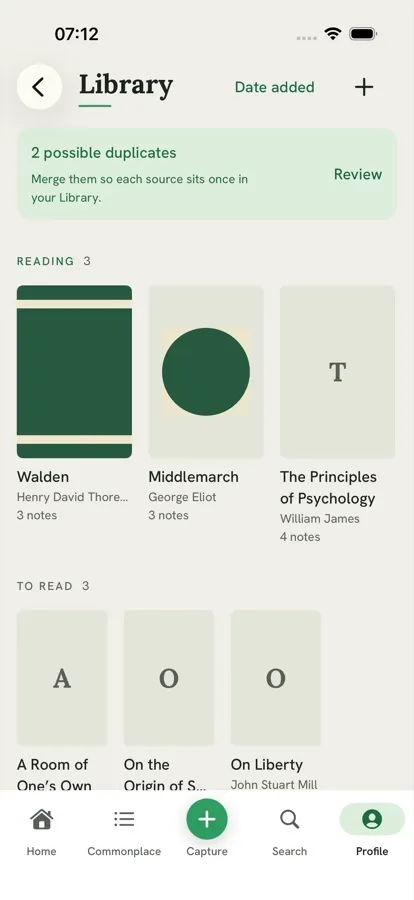 Library
Chapter 1
Getting in
Marginborn opens with a sign-in: Continue with Apple, Continue with Google, or an email code.
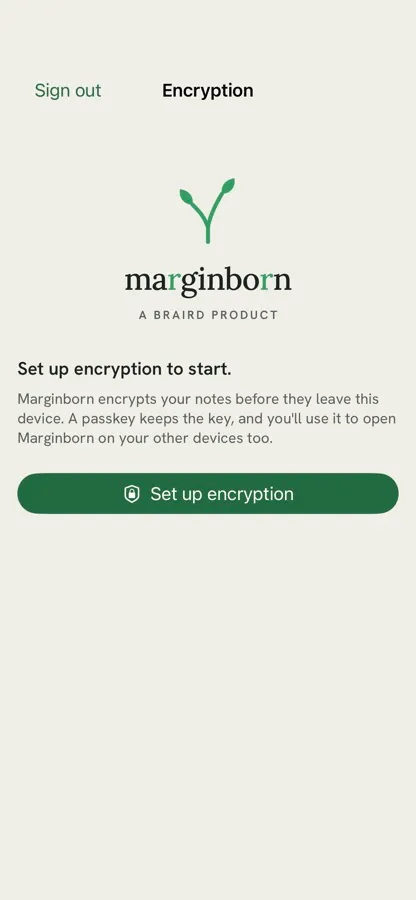
A new account sets up encryption next. Marginborn encrypts your notes before they leave the phone, and a passkey keeps the key.
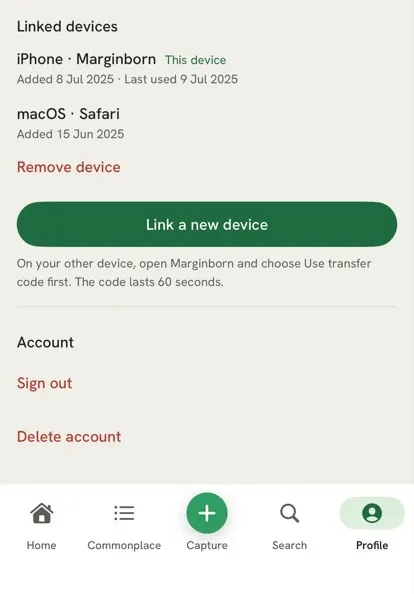
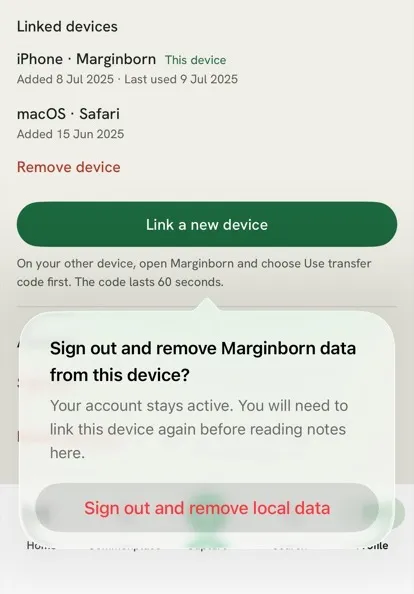
To add a second device, sign in there with the same account and enter a code made on the first, under Profile → Settings → Linked devices.
Signing in and setting up
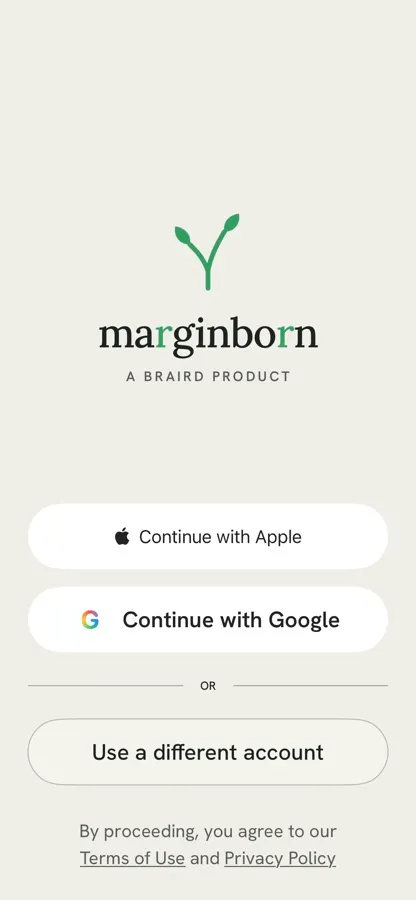
- Email sign-in sits under "Use a different account".
- After Marginborn has been fully closed, by you or by the phone, it asks you to sign in again. Notes already on the phone are kept.
- Setting up encryption cannot be skipped. It needs iCloud Keychain and a passcode.
- Tap Set up encryption.
- iOS offers to save a passkey.
- Your notes are encrypted on this phone from now on.
- The passkey sheet names braird.app. That is Marginborn.
Drawn, because the simulator cannot show the system's passkey sheet.
Coming back, and a second device
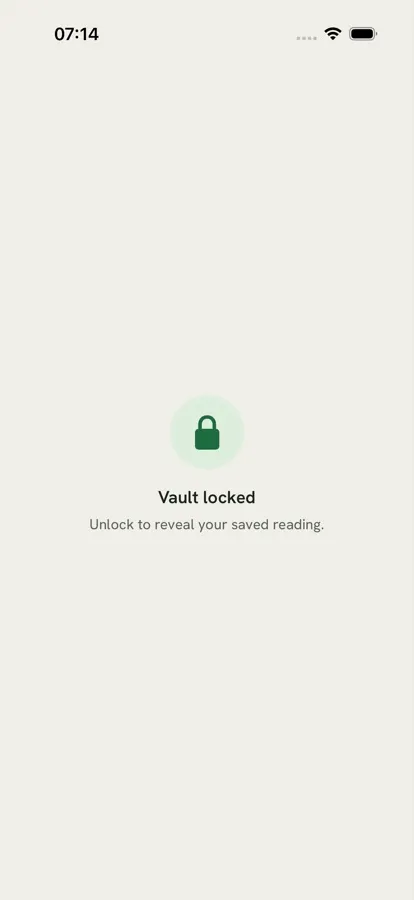
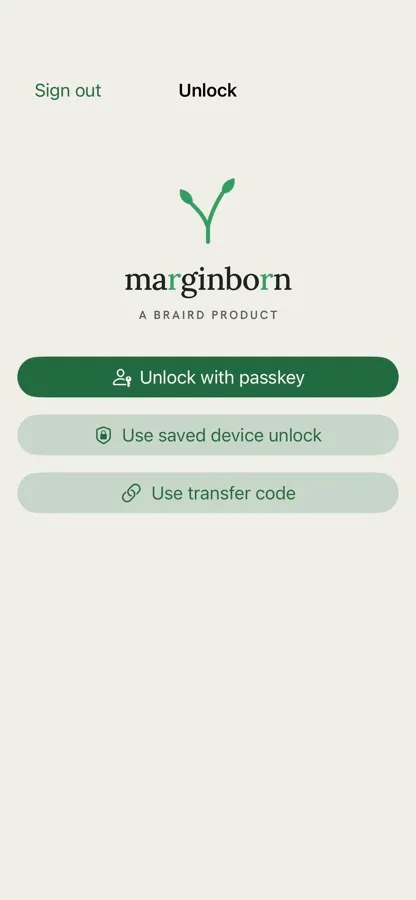
- It locks every time you leave it, and unlocking starts by itself.
- After unlocking you are back where you were, unfinished note included.
- A code to link a device lasts 60 seconds and works once. Choose "Use transfer code" on the other device first.
- Link a second device early. The app warns you while only one is linked.
Chapter 2
Capturing
The raised button in the middle of the bottom bar opens Capture. Photograph a passage, choose a photo, or write a note.
Marginborn reads the passages you have marked, or your handwriting, and opens a form with the text, its source, a page and ideas. Check it and tap Add to Commonplace.
From another app, send Marginborn a passage, a link or a picture with the share button.
From a photo to a note
- Open Capture and frame the passage.
- Tap the shutter.
- Marginborn reads the ink, not the page.
Drawn, because the simulator has no camera.
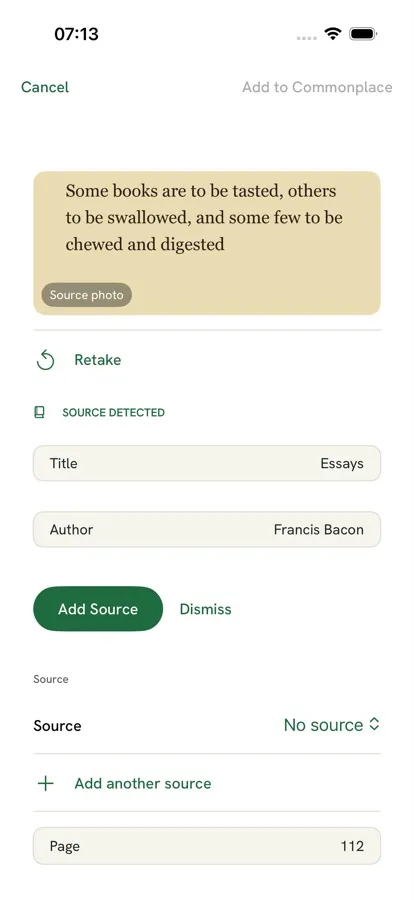
- Reading a photo needs a connection. Offline, write the note instead.
- If Marginborn spots the book, the text stays hidden until you add or dismiss the source.
- The text arrives word by word, and you can edit it once it finishes.
- Ideas are suggested by themselves after a photo, and on request after a written note.
- Saving or closing Capture always lands on Commonplace.
Ideas, and a check before saving
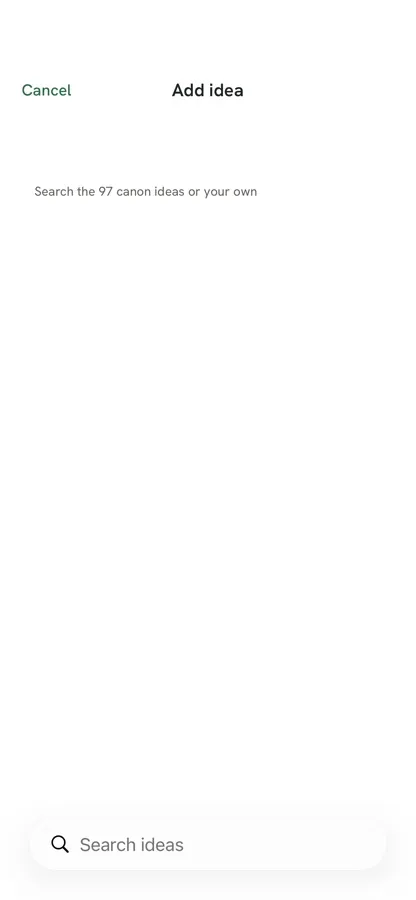
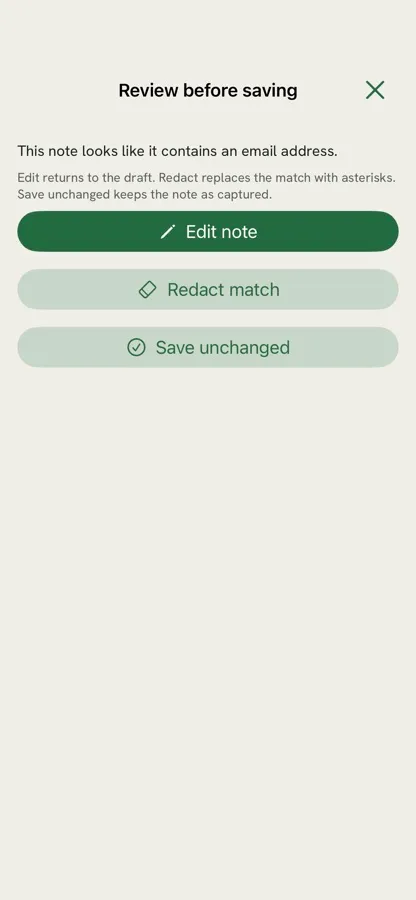
- "Add idea" lists nothing until you type.
- When a photo's text comes back, and before any text is sent for ideas, Marginborn checks it for card numbers, IBANs, phone numbers, email addresses, US Social Security and UK National Insurance numbers. It does not catch names or addresses, and a note you type and save without asking for ideas is not checked.
Sharing in from another app
- In another app, tap the share button and choose Marginborn.
- The sheet says "Saved. Open Marginborn to finish."
- Open Marginborn to review the shared note.
Drawn, because the share sheet belongs to the other app.
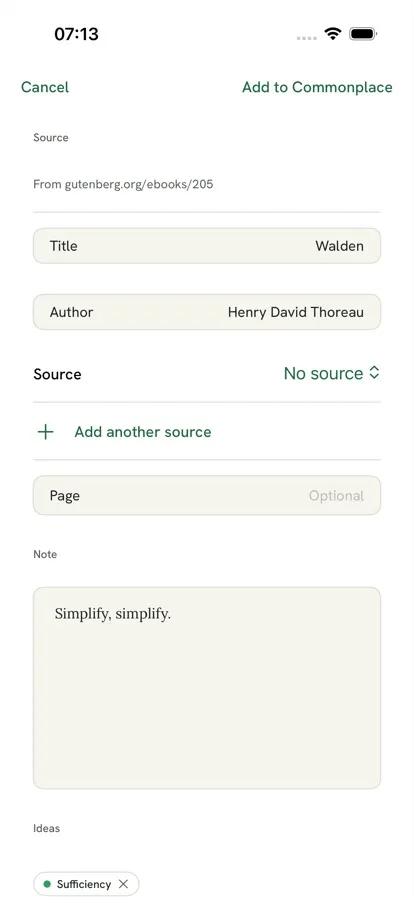
- Sharing from another app does not open Marginborn. The share waits for you, for up to 7 days.
- Shared text or a link opens as a form. A shared picture is saved straight away.
- There is one unfinished note at a time.
Chapter 3
Your Commonplace
Everything you keep lands in the Commonplace. It has two views of the same notes: a cloud of the ideas they are filed under, and a list of the notes themselves.
Tap a note to open its page, with its source, its ideas and anything written in its margins.
The cloud and the list
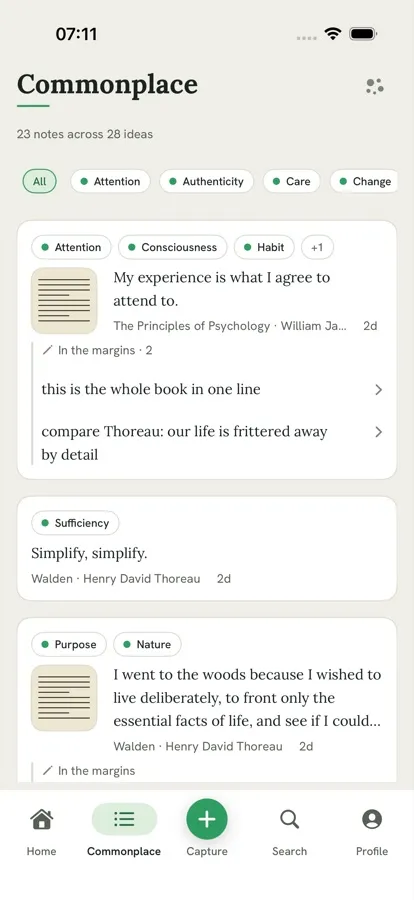
- The switch icon shows the view you will go to.
- Tap an idea in the cloud for the list narrowed to it.
- A faint idea has no notes yet. An asterisk marks an idea that sits on more than one branch.
- Notes show an age, never a date. A note with no source is signed "— You".
A note's page and its menu
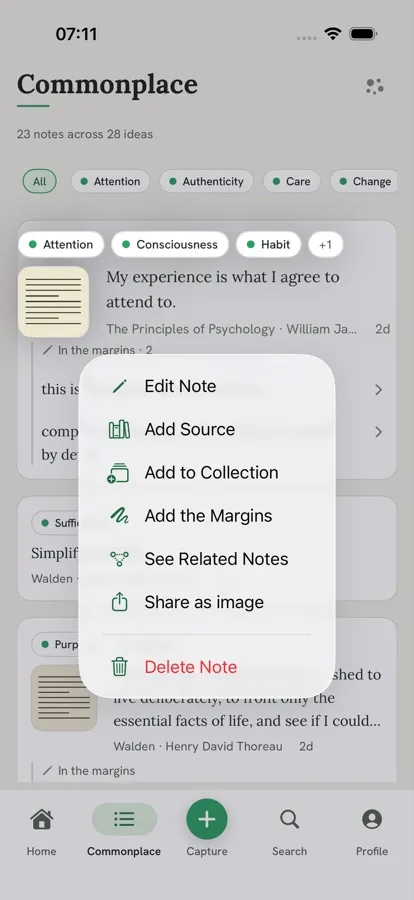
- "(Re)discover ideas" replaces the note's Canon ideas with a fresh set and keeps the ones you made.
- Editing, filing, sharing and deleting a note are on its card (hold it), not on its page.
- Deleting a note has no undo and reaches every device.
- "Share as image" leaves the photo out.
Adding the margins

- "Add the Margins" is for notes with a photo. It reads handwriting only and needs a connection.
Chapter 4
Following a thought
Notes are filed under ideas. Marginborn has a built-in set of them, the Canon, and you can add your own.
From a note's menu, See Related Notes opens The Stem: the notes that share its ideas, grouped by idea.
The Lexicon, under Profile, keeps what you make: your own ideas, collections of notes, lenses that blend ideas, and the questions you are sitting with. Check-ins ask whether those questions are still open.
Ideas and The Stem
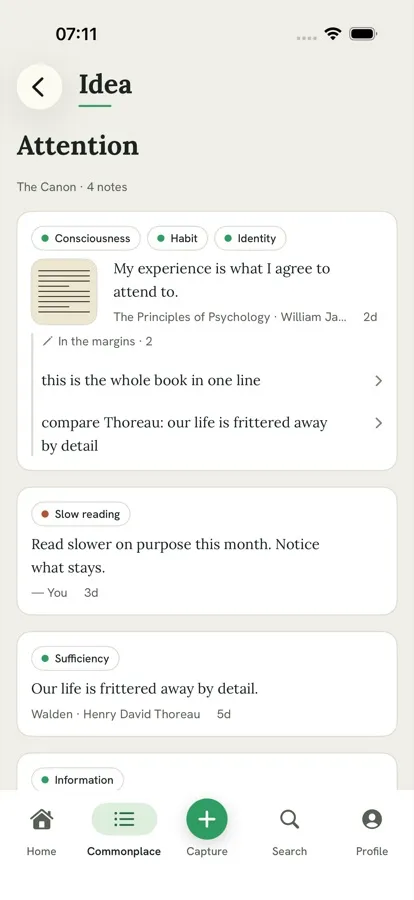
- On a note, each idea carries a dot: green for the built-in Canon, clay for your own.
- In The Stem, "related" means sharing an idea.
The Lexicon
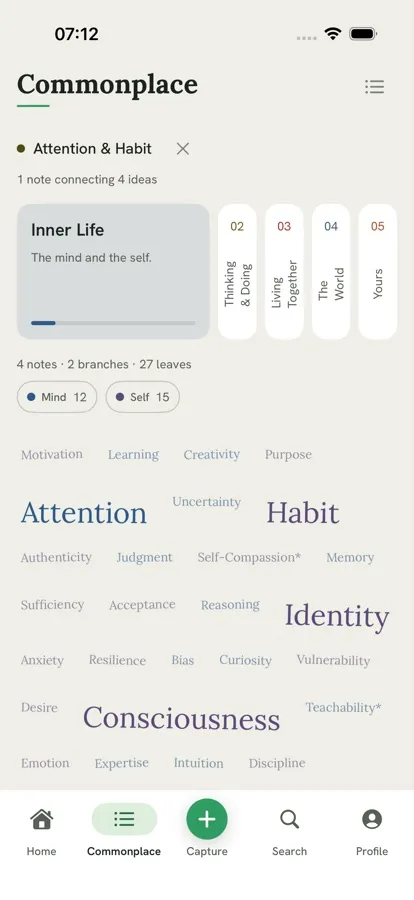
- The Lexicon's Ideas lists only your own.
- Questions come from Marginborn's prompts and check-ins, not from the Lexicon's plus.
- To read a lens's or a collection's notes, choose it in Search.
Questions and check-ins
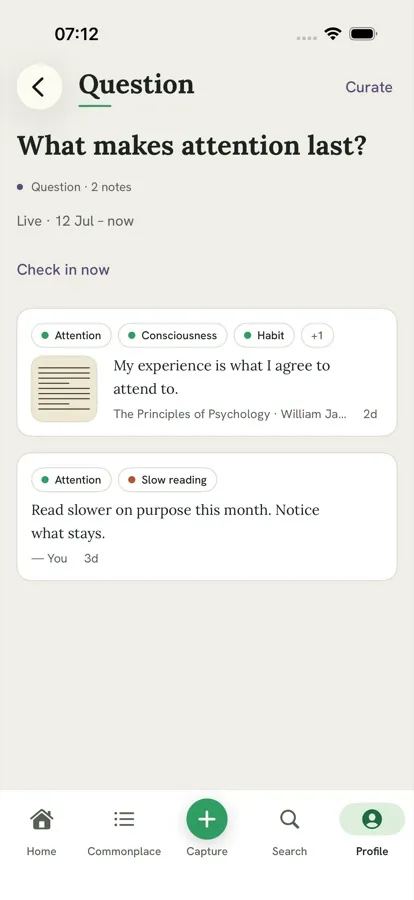
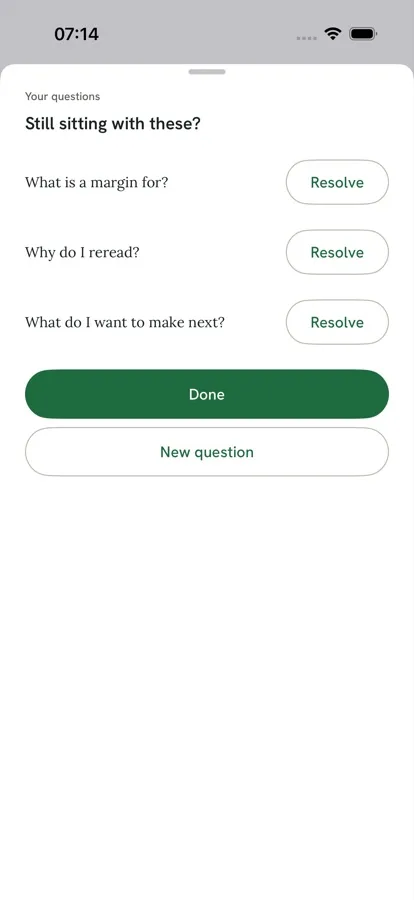

- Swiping away a check-in that Marginborn opened counts as done.
- Marginborn asks to send notifications when it first asks for your question. Reminders never contain the question.
- Once 25 notes have no ideas, Marginborn offers to tag them in batches.
Chapter 5
Finding things
Search looks through your notes, ideas, lenses and collections. Search by meaning, once it is turned on, also finds notes that say a thing in other words.
The Library holds the books and pages your notes come from, on three shelves: Reading, To read and Shelved.
Search by word and by meaning
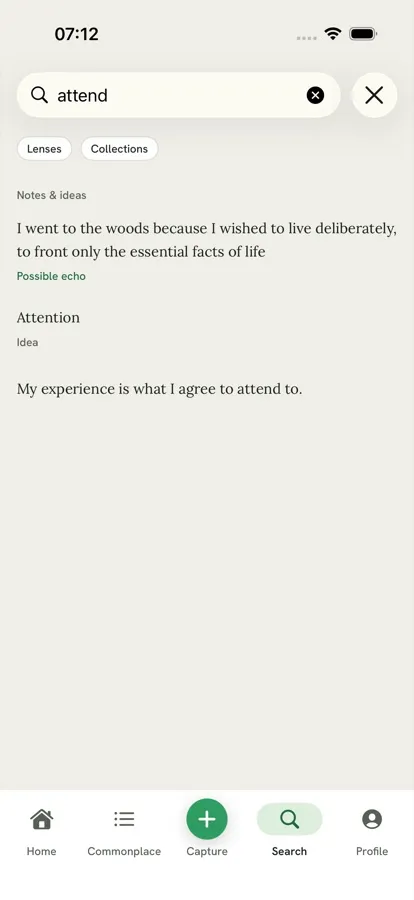
- With nothing typed, Search lists your lenses and collections.
- Typing searches by word. Search by meaning runs when you press Search on the keyboard.
- Search by meaning needs a download of about 179 MB and time to index. Both happen on the phone.
The Library and duplicates
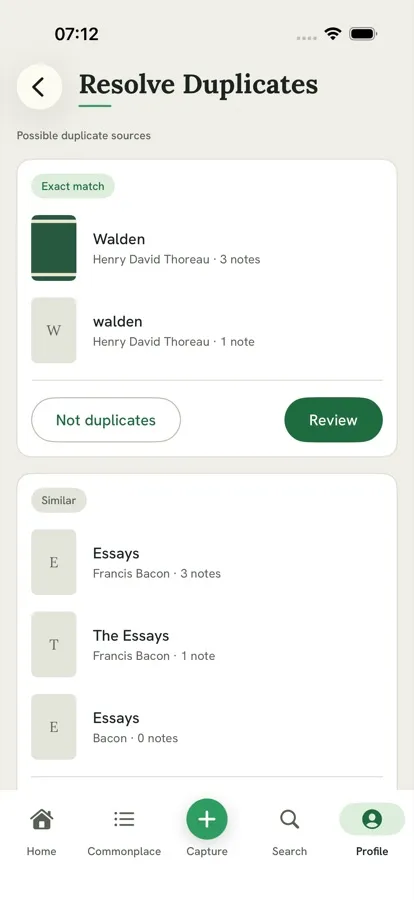
- The Library is not on the bar. Reach it from Home's Sources count, or Profile → Settings.
- The sort button names the current order and flips on a tap.
- Tapping a source opens Commonplace narrowed to it.
- Removing a source keeps its notes. Adding a title you already have makes no second copy.
- Duplicates are found for you but merged only by you, with 10 seconds to undo.
Chapter 6
Looking after it
Settings, under Profile, holds the appearance, check-ins, privacy switches, search by meaning, backup, importing from Readwise, linked devices and your account.
Appearance and privacy
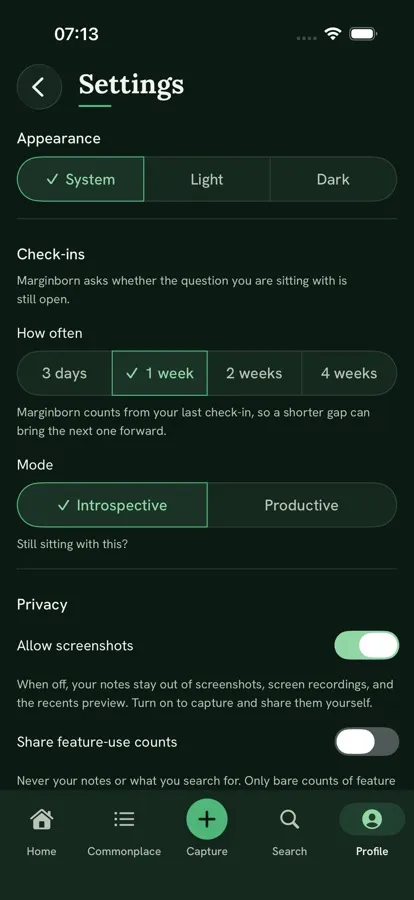
- Screenshots of notes come out blank unless "Allow screenshots" is on.
Backup, Readwise and your account
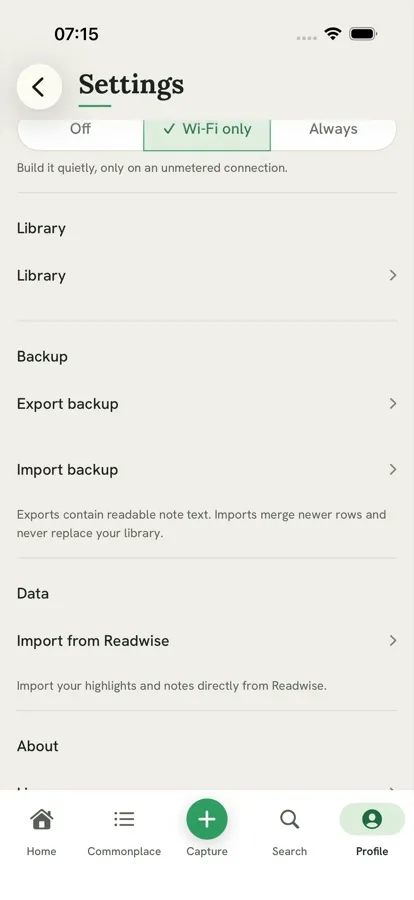
- A backup export is readable text, not encrypted.
- Importing a backup merges. It cannot replace a library.
- Readwise highlights arrive without ideas. Your Readwise note on a highlight becomes a margin.
- Signing out removes Marginborn's data from the phone.
- Deleting your account does not clear your other devices.
What is private, plainly
| Encrypted with your key before it is synced | Note text and question text |
|---|---|
| Not encrypted with that key | The photos kept with your notes, ideas and their descriptions, collection and lens names, and source details such as titles, authors, page numbers and shared links |
| Sent away to be read | A photo you capture or share, and a note's text when ideas are found for it (automatically after a photo or a share, or when you ask), go through Marginborn's server to Anthropic to be read, and their text to Microsoft Azure to be screened. They are not used for training or advertising |
| Stays on the phone | The model and index for search by meaning |
Feature-use counts stay off until you turn them on.
Pictures and details show Marginborn for iPhone, as of October 2026, over a sample library of books published before 1930.
Common questions
FAQ
Who is Marginborn for?
How do I capture printed passages?
Can I capture handwritten notes?
Will my notes sync across devices?
Is my data private?
Take the next step
Build your Commonplace
So the next time you sit down to write, you're not starting from a blank page.
Marginborn is in beta, on Android and iPhone.